Why you cannot select text in some PDFs
Some PDFs contain real text and some are only photographs of pages. How to tell which one you have, and how OCR makes a scanned PDF searchable again.
Ama Mundum LLC Team5 min read
You click and drag across a sentence in a PDF. Nothing highlights. The cursor never changes. Search finds nothing, even though the words are plainly visible on the page.
That usually means the PDF contains a picture of the page, not the words on the page.
Two PDFs can look exactly the same
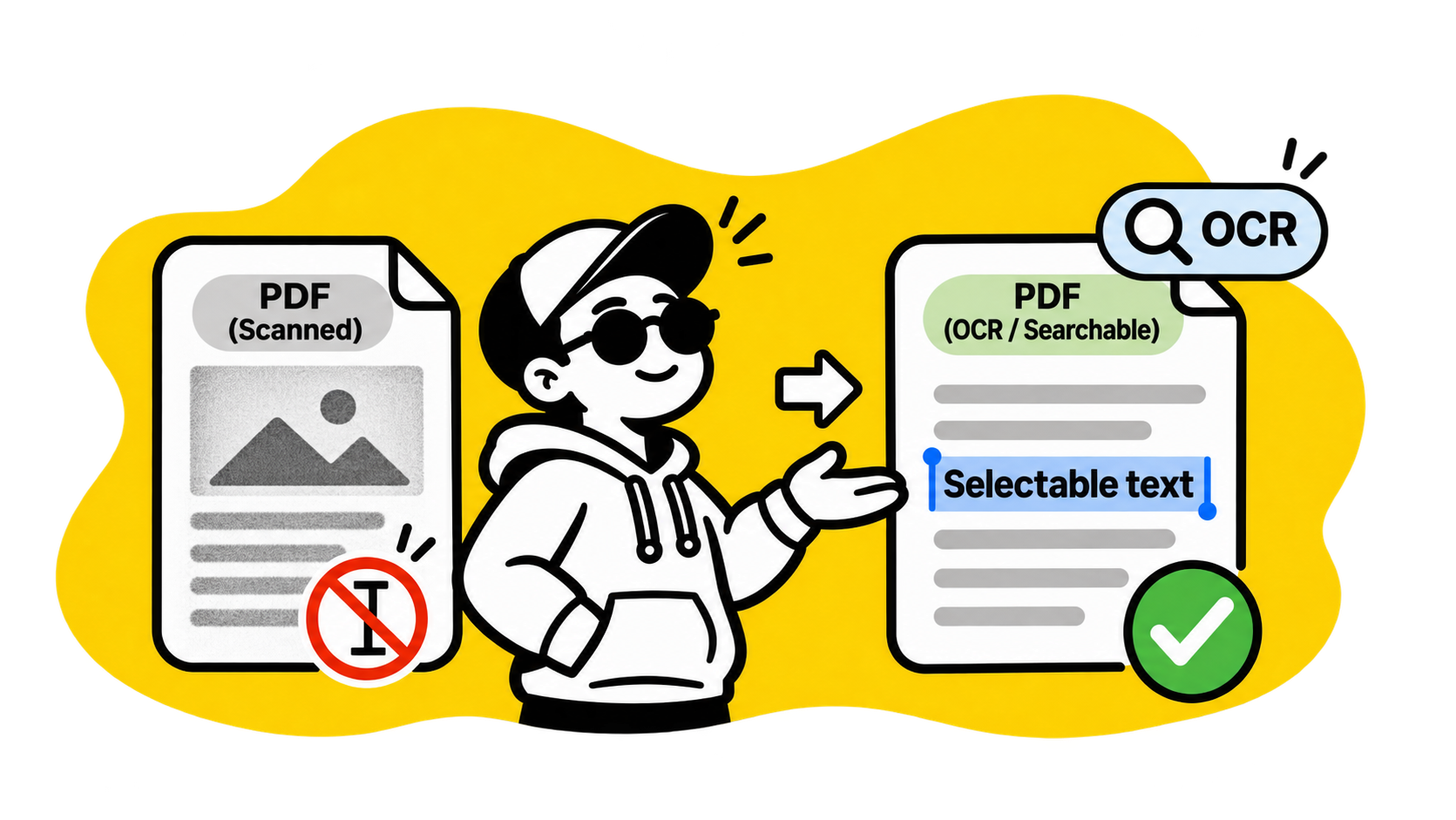
A PDF page can contain a text layer: letters stored as characters that a reader can select, search and copy. It can also contain a single large image, such as a scan from a printer. To your eyes, those two pages look identical. To a computer, one is a document and the other is a photograph.
The difference matters when you want to search a long report, copy a paragraph, extract an invoice number or give the document to software that reads text.
Try three quick checks:
- Can you select one word with your mouse?
- Does the PDF reader find a word you can see?
- Can you copy a sentence and paste readable text somewhere else?
If all three answers are no, it is probably a scanned PDF.
Why scanning removes the text
When a paper document goes through a scanner, the scanner records pixels. It does not automatically know that a group of dark pixels is the word “invoice” or that a line is a table.
The file can still contain useful information, but that information is trapped in the picture. This is why a scanned contract can be impossible to search and why a scanned CV may be invisible to an applicant tracking system.
The page dimensions and visual quality are not proof that text exists. A sharp scan is still a scan.
OCR is the missing step
OCR means optical character recognition. It looks at the page image, identifies likely letters and words, and places an invisible text layer over the image.
The page still looks the same. The difference is that you can now search, select and copy what the OCR engine recognized.
OCR is not magic, and it is not a transcription guarantee. It has an easier time with:
- printed text in a common font;
- straight pages with good contrast;
- clean scans without shadows or folds;
- one language used consistently.
It struggles more with handwriting, decorative type, rotated pages, faint carbon copies and tables with tight columns.
What to check after OCR
Do not assume that a searchable PDF is an accurate PDF. Search for a few things that are easy to verify:
| Check | What it catches |
|---|---|
| A name | Similar-looking letters such as O and 0 |
| A date | Missing punctuation or swapped digits |
| A total | Errors in decimals and currency symbols |
| A long sentence | Words merged together or skipped |
If the document is a contract, invoice or identity document, compare the important values with the scan. OCR makes the words accessible; it does not make the original pixels more legible.
When PDF to Word is the better choice
OCR gives you searchable text inside a PDF. If your next step is editing the document, a conversion to Word may be more convenient. The layout will not always survive perfectly, especially when the source has columns, tables or handwriting, but the text becomes editable.
That is a different goal from making a PDF searchable. Pick the output first:
- Search and copy while keeping the page appearance: OCR PDF.
- Edit the words in a document editor: PDF to WordOpen tool.
- Create a plain text file for notes or code: PDF to Markdown.
The short version
A PDF that looks like text may really be a stack of page photographs. If you cannot select or search the words, run it through OCR PDFOpen tool. Then test a name, date and number against the original before relying on the result.
The goal is not to change what the page looks like. It is to give the computer a text layer it can actually read.