Merge, split or organize a PDF: which do you need?
Merge, split, extract and reorder are different PDF operations. A quick guide to choosing the right one without rebuilding the document from scratch.
Ama Mundum LLC Team5 min read
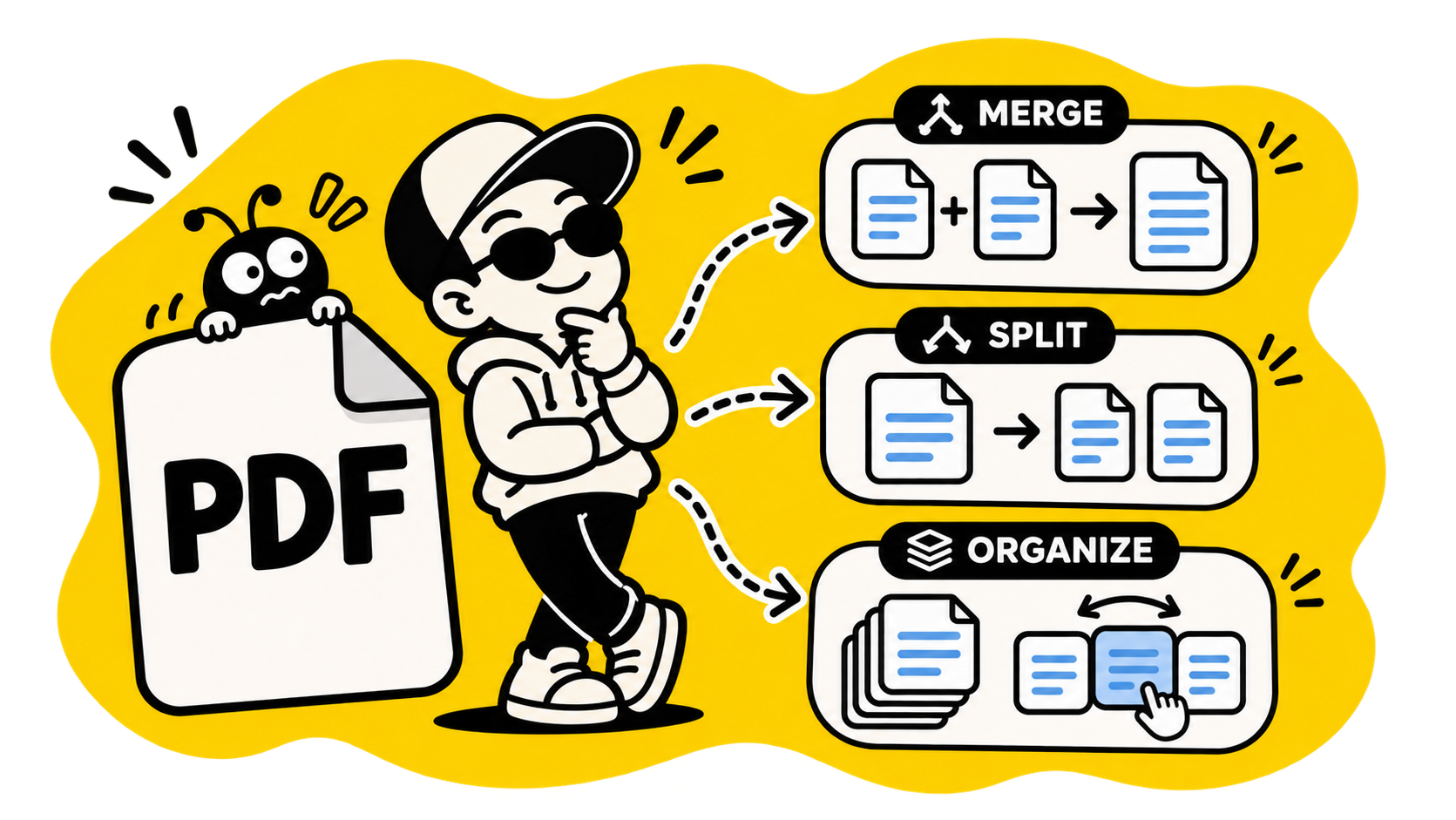
“I need to edit a PDF” can mean several different things. You may want to join two files, remove a page, take out a range or change the order. Those operations sound similar, but they produce different files.
The fastest choice is to describe what should happen to the pages:
| What you want | Use |
|---|---|
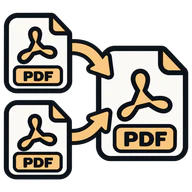
| Several PDFs become one | Merge PDF |
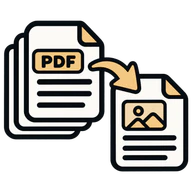
| A range becomes its own file | Extract PDF Pages |
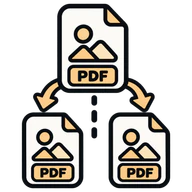
| One PDF becomes several files | Split PDF |
| Pages move, rotate or are removed | Organize PDF |
Merge when the files should travel together
Use Merge PDFOpen tool when separate documents need to become one document in a chosen order: a cover letter followed by a CV, an invoice followed by its receipts, or a report followed by its appendix.
Merging does not change the page content. It changes the container and the sequence. Check the order before downloading, especially when several files have similar names.
Extract when you need a section
Use Extract PDF PagesOpen tool when the original document should remain intact but you need a smaller copy of a selected range. For example, pages 12–15 of a 40-page report can become a four-page handout.
Extraction is usually the cleanest choice when you want to share a section without sending the rest of the document. It also avoids deleting anything from the source file by accident.
Split when the pages represent separate documents
Use Split PDFOpen tool when one file contains multiple separate documents or when every page needs to become its own output. A scanned bundle of receipts is a common example.
The output may arrive as several files in a ZIP because one download is easier to handle than a long list of individual downloads. Name the files after the split so you can identify them later.
Organize when the pages are right but the order is wrong
Use Organize PDFOpen tool when you need to reorder pages, rotate individual pages or remove pages while keeping the rest together.
This is different from merging. If page 7 is upside down, adding the file to a merge tool will not fix it. If the pages are already in one document, organize that document directly.
Removing pages is a narrower operation
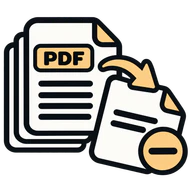
If the only problem is that a few pages should not be there, Remove Pages from PDF is more specific. It is useful for taking out a blank final page, a duplicate scan or an appendix that should not be shared.
Specific tools make the intended change clearer. That matters when the document is important and you need to verify that everything else stayed the same.
A safe sequence for a complicated document
For a document that needs several changes, work from the least destructive operation to the most specific one:
- Keep the original untouched.
- Extract or remove the pages you do not need.
- Organize the remaining pages.
- Merge the finished sections if they belong together.
- Open the result and check the first, last and changed pages.
Structural operations such as merging, splitting and reordering keep text selectable and links intact when the source supports them. Compressing or painting content onto pages is a different kind of edit and can flatten useful document structure.
The right PDF tool is usually the one that describes the page change in one verb. Join, extract, split, organize or remove — choose the smallest operation that matches the job.