Why Did My Downloaded Image Save as WebP?
A WebP download is usually not broken. Learn why websites serve it, when to convert it to JPG or PNG, and why renaming the file will not work.
Ama Mundum LLC Team5 min read
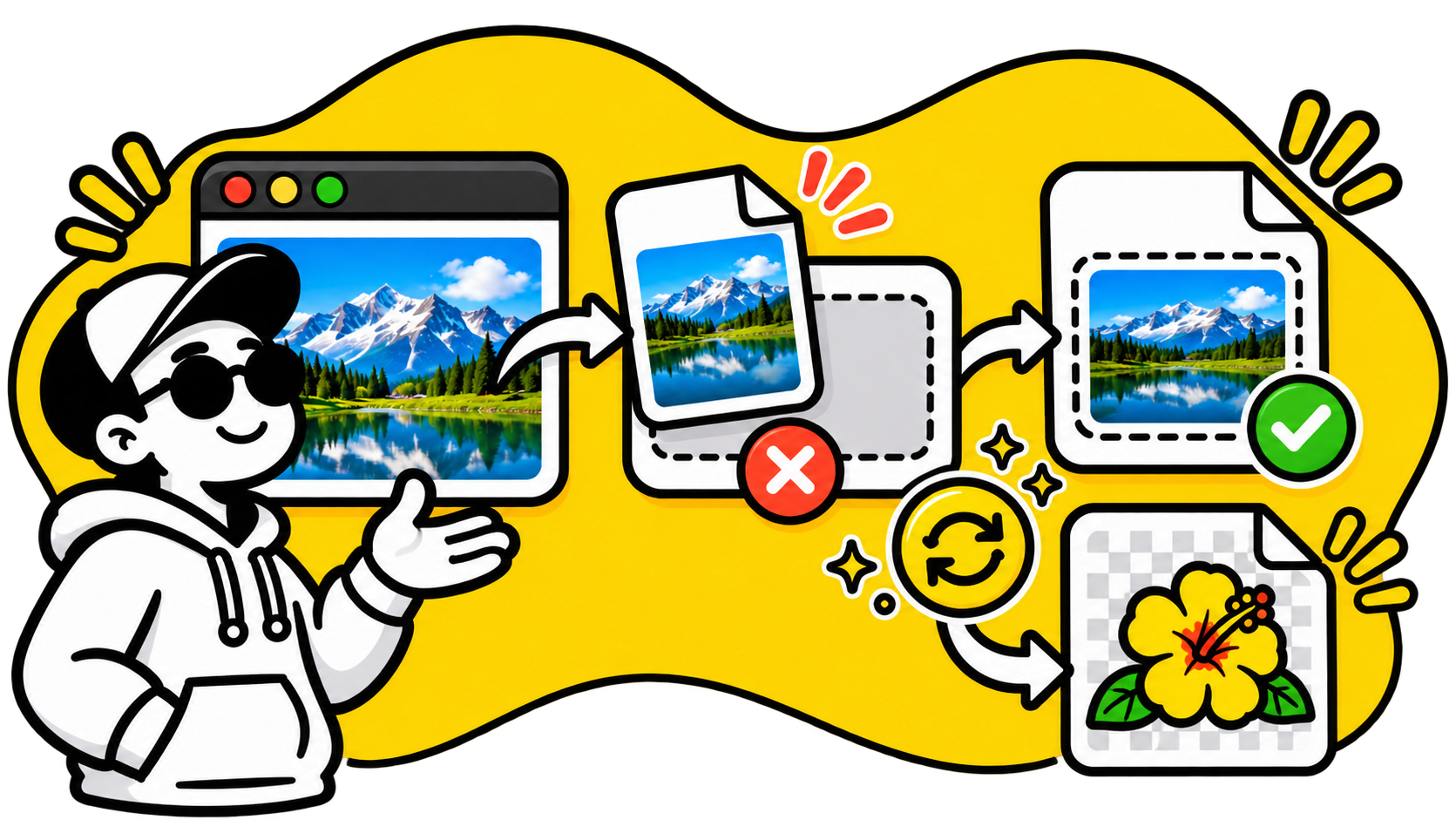
If an image opens in your browser but another app refuses it, the file is probably fine. The website served a WebP image because browsers support it and it is often smaller than JPG or PNG. The problem is usually the destination: an older editor, upload form, document app, or print service that does not accept WebP.
Web servers can check which image formats a browser says it understands and send WebP when it is supported. That is a normal part of how image delivery works, not a sign that the download was damaged. Google's WebP documentation explains this format negotiation.
Choose the format the next app can use
Before converting, check what the destination accepts. The format that is most useful is the one the next app can open.
- Choose JPG for a photo you need to upload to a form, add to a document, or send to someone using older software. JPG is widely accepted, but it cannot preserve transparent areas. Those areas become white.
- Choose PNG for a logo, icon, or cutout with a transparent background. PNG keeps transparency, though the file can become much larger than the WebP.
- Keep WebP if the destination supports it. Converting a file that already works adds another step and may re-encode the image.
If you are deciding what format to use for an image on a web page, our PNG vs JPG vs WebP comparison covers that separate choice. Here the question is what to do when a particular app rejects the file you already have.
Renaming the extension does not convert the image
Changing photo.webp to photo.jpg only changes the filename. The image data inside is still WebP, so the app may keep rejecting it or show an error. A conversion decodes the picture and writes it in the new format.
Use WebP to JPGOpen tool for photographs and other images where a white background is acceptable. If the image has transparency, use WebP to PNGOpen tool instead. Keep the original until you have opened the converted copy in the app or form that needs it.
Why a PNG can be much larger
WebP was designed to deliver images efficiently on the web. It supports both lossy and lossless compression, as well as transparency. JPG is lossy too; PNG is lossless. When you convert a lossy WebP to PNG, the PNG preserves the pixels it receives, but it cannot restore detail that was discarded when the original WebP was made. The larger file is not a higher-quality original.
For a photo, JPG is usually a better compatibility tradeoff. For artwork where transparent pixels matter, the extra size of PNG may be necessary. If a portal has a strict file-size limit, check the converted file before uploading and follow the portal's own size and format requirements.
Tell a format problem from a failed download
If the image displays in your browser but the receiving app rejects it, the format is the likely mismatch. If the browser preview is broken too, or the downloaded file is empty, try downloading it again from the original page. Converting a partial file will not repair a download that never finished.
You also do not need to convert WebP just to view it in a modern browser. Convert only when the next app or service cannot use the format, and keep the original in case you need its transparency or want to try a different output later.
A quick check before you send it
- Confirm the allowed formats in the receiving app or form.
- Use JPG for an ordinary photo, or PNG when transparency must remain.
- Convert the file instead of changing its extension.
- Open the result in the destination before deleting the original.
Both converters run in your browser, so the image is not uploaded to a conversion server. Pick WebP to JPGOpen tool when compatibility is the issue, or WebP to PNGOpen tool when you need to keep a transparent background.